How to Run an Effective Virus Scan on Your Smartphone
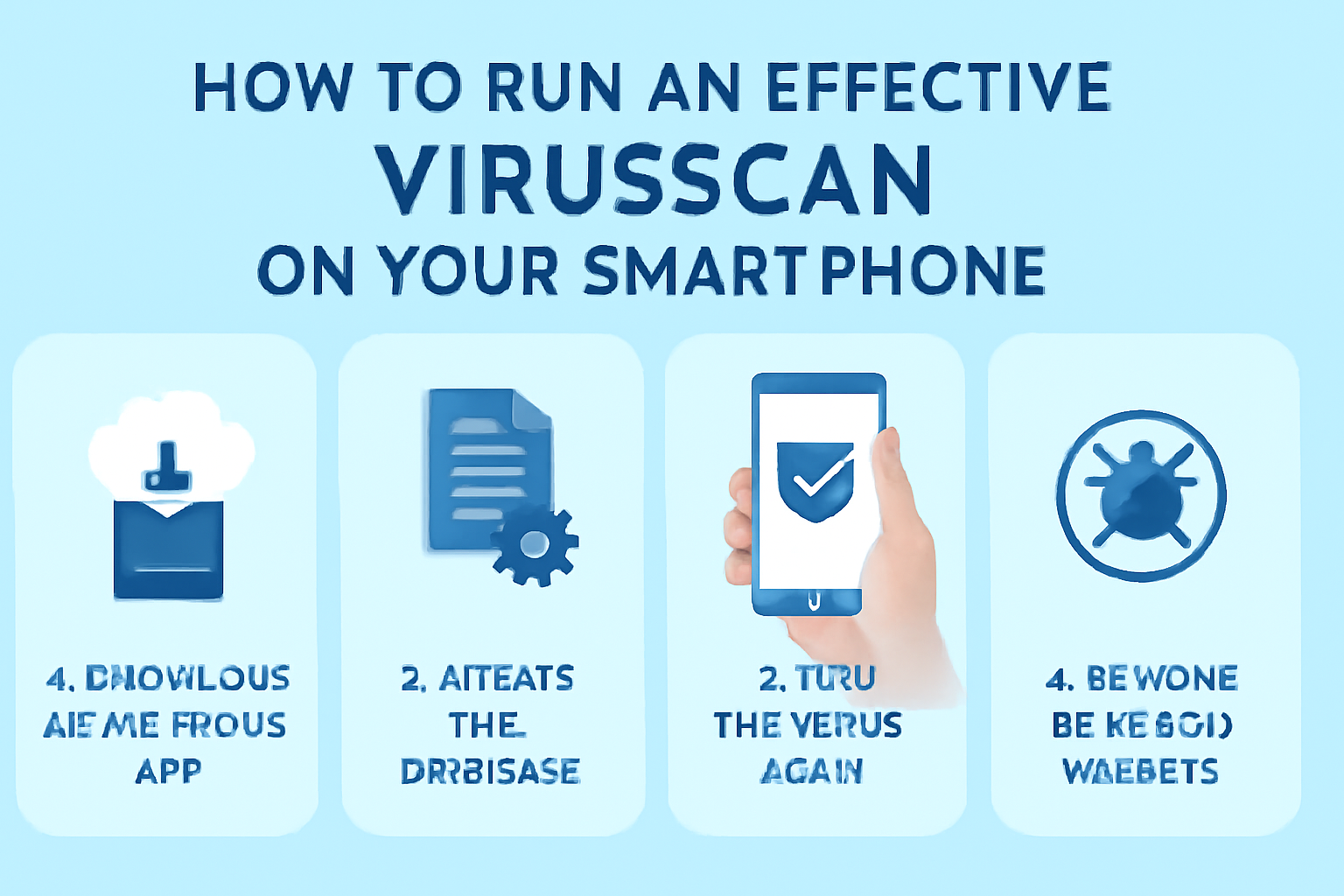
In today’s digital age, smartphones are much more than just devices for making calls. They are our personal assistants, entertainment hubs, banking tools, and so much more. As we continue to store important data on our phones, from photos to passwords, keeping them secure has never been more crucial. One of the most effective ways to safeguard your phone is by running regular virus scans. But how do you run an effective virus scan on your smartphone? Here’s a step-by-step guide to ensure that your device remains protected and free from malware and other security threats.
Understanding Why a Virus Scan is Necessary for Your Smartphone
Smartphones are constantly connected to the internet, whether we’re browsing websites, downloading apps, or interacting on social media platforms. This constant connectivity increases the chances of encountering malicious software that could potentially harm your device or compromise your personal information.
Viruses, malware, and other threats can enter your smartphone in various ways, such as through compromised apps, websites, or even text messages. Once installed, these threats can steal sensitive data, slow down your device, or even take complete control of your phone.
Running a virus scan helps identify these threats before they can cause harm. In essence, it’s your first line of defense against cyber-attacks, ensuring your phone remains safe from prying eyes and malicious intent.
Step 1: Check for Signs of Infection
Before jumping into a virus scan, it’s essential to know the symptoms that could indicate your phone is infected. These signs can include:
- Sluggish Performance: If your phone has become unusually slow or apps are crashing frequently, it might be a sign of malware.
- Unexpected Pop-ups: If you’re seeing frequent pop-up ads, especially those that are hard to close, your phone could be compromised.
- Unexplained Data Usage: If you notice a spike in your data usage without any obvious reason, it could be because malicious apps are running in the background.
- Battery Drain: An infected phone might experience faster battery drainage due to hidden processes running.
- New or Unknown Apps: Check your app drawer for any unfamiliar apps that you did not install. These could be the work of malware.
If you notice any of these signs, it’s time to run a virus scan. Even if you don’t spot any obvious issues, running regular scans will help ensure your phone is free from any hidden threats.
Step 2: Install a Trusted Antivirus App
While many smartphones come with built-in security features, having a dedicated antivirus app can provide an extra layer of protection. Choose an antivirus app that has good reviews, a solid reputation, and provides a comprehensive range of security features.
Most antivirus apps will offer various functions, including:
- Real-time scanning: This feature helps detect potential threats as they appear on your device.
- Safe browsing: Many antivirus apps can also protect you while browsing the web, warning you about risky sites before you visit them.
- Anti-theft: Some apps offer additional features like remotely locating your phone, locking it, or wiping its data if it’s stolen.
- App scanning: An essential feature that scans apps for any malware before or after installation.
Make sure to only download antivirus apps from trusted sources like the official app stores. Avoid downloading APK files from third-party sites, as these can sometimes be used to distribute malware.
Step 3: Run a Full Virus Scan
Once you’ve installed your antivirus app, it’s time to run a full virus scan. A full scan will check every corner of your smartphone, including apps, files, and system settings, for any suspicious activity. While some apps offer a quick scan that only checks recent files or apps, a full scan is more thorough and can help identify any hidden malware.
Here’s how to run a full virus scan on most smartphones:
- Open your antivirus app: Launch the antivirus application that you installed.
- Select the ‘Full Scan’ option: This will scan your entire device for any potential threats.
- Wait for the scan to complete: Depending on the size of your phone’s storage and the number of apps, this process might take a few minutes. Make sure to let the scan finish.
- Review the results: Once the scan is complete, the app will display any threats it has found. Follow the on-screen instructions to remove any identified threats.
It’s recommended to perform a full virus scan at least once a month, or more frequently if you suspect any unusual activity on your phone.
Step 4: Update Your Smartphone’s Operating System
Keeping your smartphone’s operating system (OS) up to date is another essential step in maintaining your device’s security. Manufacturers regularly release updates that address security vulnerabilities, bug fixes, and new features.
These updates are designed to protect your device from newly discovered threats, making it harder for malicious actors to exploit any weaknesses in your phone’s software. Here’s how you can update your OS:
- For Android: Go to Settings > Software Update > Check for Updates.
- For iPhone: Go to Settings > General > Software Update.
Always make sure you are using the latest version of your OS. If you don’t update your phone regularly, you might be leaving it vulnerable to cyberattacks.
Step 5: Remove Unnecessary Apps and Files
Malware can often hide in apps and files that you don’t need. If you have apps or files that you no longer use, it’s a good idea to delete them. Not only does this help free up storage space, but it also reduces the chances of encountering malware from untrusted sources.
- Delete unused apps: Go through your apps and remove any that you don’t use regularly. Apps from unofficial sources should always be removed immediately.
- Clean up downloads: If you have files you’ve downloaded but never use, delete them. These files can sometimes harbor malicious code.
- Check app permissions: Some apps may request unnecessary permissions. Go to your phone’s settings to review and adjust the permissions for each app. If an app is asking for access to sensitive data (like contacts or camera) that isn’t necessary for its function, it might be worth removing.
By maintaining a clean phone, you not only free up space but also minimize your exposure to potential security risks.
Step 6: Enable Your Phone’s Built-in Security Features
Many modern smartphones come with built-in security features that provide extra layers of protection. These features help protect your device even when you’re not actively running a virus scan.
- Fingerprint/Face Recognition: Enabling biometrics like fingerprint scanning or facial recognition adds an extra layer of protection. If your phone is lost or stolen, this will help prevent unauthorized access.
- App Lock: Some smartphones allow you to lock individual apps. For apps containing sensitive data (e.g., your banking app), consider enabling app lock to prevent unauthorized access.
- Find My Phone: Both Android and iOS devices offer features like “Find My Device” or “Find My iPhone.” These can help locate your phone if it’s lost or stolen and even remotely erase data to protect your privacy.
By enabling these features, you make it much harder for anyone to access your device without your permission.
Step 7: Stay Safe While Browsing and Downloading
Most malware infections on smartphones occur while browsing the internet or downloading apps. To minimize your risk, take some simple precautions:
- Be cautious with downloads: Only download apps from official app stores, and always check the reviews before downloading.
- Use secure connections: Always use secure Wi-Fi networks, and avoid using public Wi-Fi for sensitive activities like banking or shopping.
- Be mindful of links: Avoid clicking on suspicious links in emails, text messages, or websites. These can lead to phishing scams or malicious websites.
Practicing safe browsing habits can significantly reduce your risk of getting infected with malware.
Conclusion
Running regular virus scans on your smartphone is essential in today’s world. By following these steps, you can protect your personal data, keep your phone running smoothly, and prevent malicious software from taking over your device. Remember, security isn’t just about one-time actions; it’s about maintaining a proactive approach. Regular scans, updates, and safe browsing habits are key to keeping your smartphone secure.
For more information on running an effective virus scan, visit https://phishs.com/.